
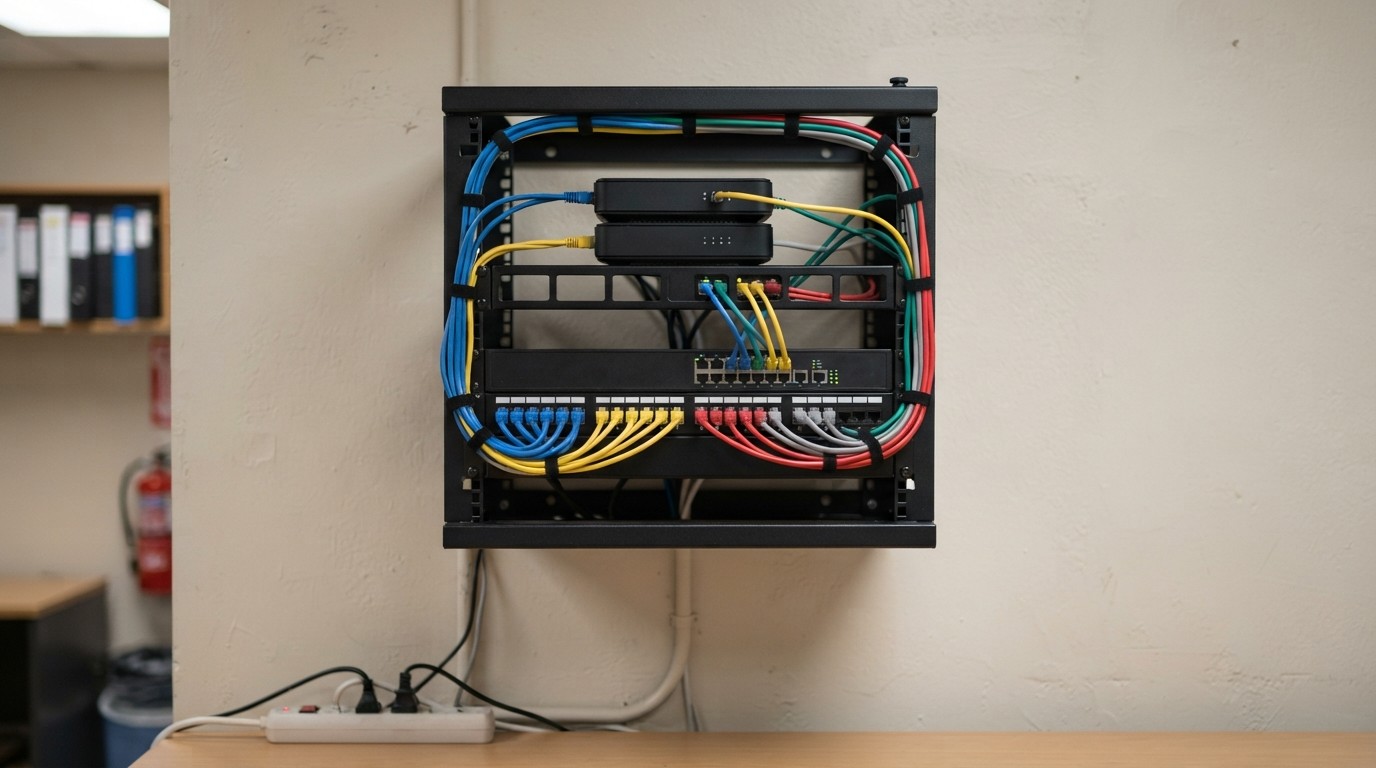
Every internet connection fails eventually. A truck takes out a cable, an equipment fault at the provider’s building takes out a whole neighbourhood, a storm knocks out power to a local node. Providers differ in how often it happens and how fast they repair it, but none of them reduces the chance to zero.
For a business that takes card payments, runs cloud software or answers phones over the internet, an outage is not an inconvenience. It stops work. The cheapest and most effective protection is a second connection that takes over automatically when the first fails. Doing it well requires thinking about a few things most small offices overlook.
In brief
- Redundancy beats speed: two independent paths survive failures a faster single line cannot.
- A different provider and a different technology usually mean a different failure cause.
- Test it by unplugging the primary, and put the network equipment on battery backup.
Why a faster plan is not the answer
When the connection has failed, speed is irrelevant. A single connection, however fast or expensive, is a single point of failure. A dedicated circuit with a strong service level agreement gets repaired sooner, and you may receive a credit, but it still goes down, and during the repair you are without internet.
The solution is redundancy: two independent paths, so that when one fails, the other continues. The word independent matters. Two connections from the same provider that share a cable run into your building fail together when someone cuts it.
Choosing the backup
- Second wired line from a different provider. Strengths: Fast, consistent, often unlimited data; truly independent if the physical path differs. Weaknesses: Costs a monthly fee; may be unavailable at some addresses. Suits: Offices where the backup must carry normal work.
- Cellular (4G or 5G) backup. Strengths: Independent of wires; quick to install; useful when the building has one wired option. Weaknesses: Variable speed and signal; data caps or throttling; higher latency. Suits: Keeping essentials running through an outage.
- Fixed wireless. Strengths: Independent path; good in places wires do not reach. Weaknesses: Needs line of sight; weather and interference. Suits: Sites with limited wired options.
- Satellite. Strengths: Works almost anywhere. Weaknesses: Cost; latency; weather. Suits: Remote locations where nothing else exists.
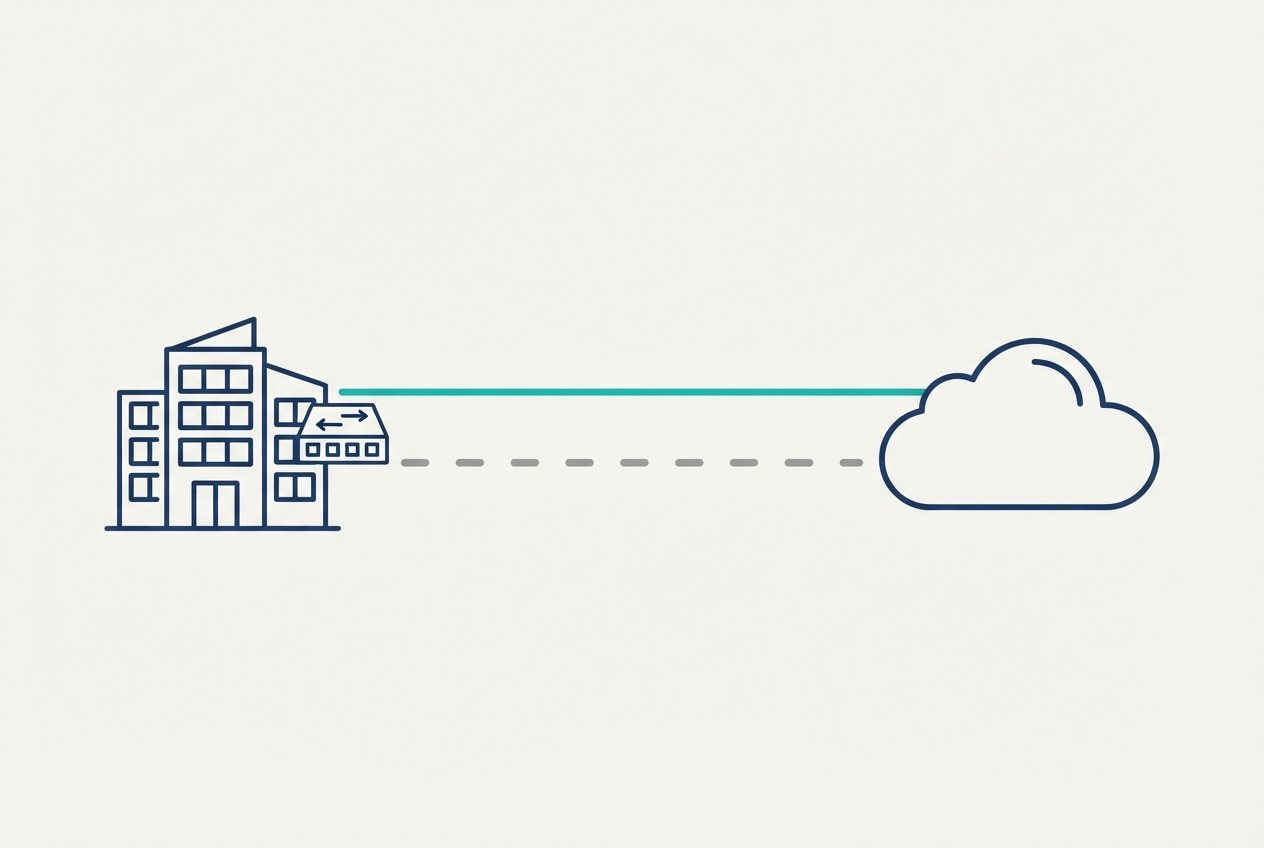
For most small offices the best combination is a primary wired line plus a cellular backup, or two wired lines from different providers using different technologies, such as fiber and cable. Different technology usually means different cable, different equipment and different failure causes.
Before you buy, ask each provider where their cable enters the building and whether the other provider uses the same duct or pole. It is not always possible to find out, but even a partial answer is worth having.
How failover works
Failover needs a device that can connect to two internet services at once and switch between them. Business routers designed for this are called dual-WAN routers, where WAN stands for wide area network, meaning the connection to the outside.
The router keeps checking that the primary connection works, usually by sending small test requests to a reliable destination on the internet. If those fail repeatedly, it concludes that the line is down and sends traffic over the backup instead. When the primary returns, it switches back. The whole process takes seconds to a minute, depending on how the test is configured.
There is a related feature, load balancing, which uses both connections at once to share traffic. It gets more out of the money spent on two lines, but it is more complicated to configure and can cause problems with services that expect a stable address. For most small offices, a simple primary and backup arrangement is easier to manage and understand.
Problems that surprise people
- Your public address changes. Each connection has its own public IP address. When the router fails over, your outside address changes. Anything that depends on a fixed address, such as a VPN, remote access, a hosted server, or a payment terminal that accepts connections only from one address, may stop working. Plan for this before an outage.
- Phones may not follow. Systems that use the internet for calls usually reconnect after a failover, but active calls drop, and registration may take a moment. Test it with your phone provider.
- The backup is slower or limited. Cellular connections may be slower than your wired line, and data allowances can run out. If everything runs over the backup for a day, you may use the month’s allowance.
- Power affects everything. If the power goes out, both connections can be lost unless the modems, router and network switch have battery backup. A small uninterruptible power supply for these devices keeps the network alive through short cuts.
- Both lines depend on the same equipment. A single failed router or switch takes both down. Failover protects against provider failures, not against your own equipment.
- Silent failures. A backup that has been dead for months is discovered during the outage. Monitor it.
Making the backup go further
When the office is running on a limited backup, you want critical traffic to get through and everything else to wait. Many business routers can prioritise by type of traffic or by device, and some can restrict the backup to selected devices only.
- Prioritise: payment terminals, phones, point-of-sale systems, essential cloud applications, email.
- Restrict or pause: guest Wi-Fi, software updates, large downloads, cloud backups, streaming.
- Set automatic rules, so these changes apply when the backup is active and revert when the primary returns.
A step-by-step approach
- List what must keep working. Payments, phones, specific applications. This defines how much backup capacity you need.
- Decide how long you can tolerate being offline. If the answer is minutes, you need automatic failover. If it is a few hours, a manual switch might do.
- Choose an independent second connection. Different provider, ideally different technology and physical path.
- Buy a router that supports dual connections. Make sure it supports automatic failover and the type of connection your backup uses.
- Install the backup and place any cellular equipment carefully. Signal strength varies greatly between locations in a building, so test it in a few places. A router near a window or an external antenna often gives much better results.
- Put network equipment on battery backup.
- Configure the failover tests and priorities. Choose reliable test destinations, and set the thresholds so that the router does not switch for a momentary blip.
- Set up monitoring and alerts. You want a message when the primary fails, and another when the backup has been used, and a periodic check that the backup itself works.
- Test it.
Testing, which most people skip
A failover that has never been tested is a hope, not a protection. Test it on purpose, at a quiet time, with staff informed.
- Check that all essential systems are working normally on the primary line.
- Disconnect the primary, for example by unplugging its cable from the router.
- Time how long it takes for connectivity to return on the backup.
- Test the things that matter: a card payment, a phone call, your key cloud applications, remote access.
- Note what breaks. Anything that depends on a fixed address will show up here.
- Reconnect the primary and confirm that the router switches back, and everything returns to normal.
- Record the results and fix whatever failed.
Repeat the test a couple of times a year, and after any change to the network. Providers change equipment, routers update, and configurations drift.
Write it down
Keep a one-page note with the account numbers and support numbers for both providers, the location of the equipment, how to tell which line is active, and what staff should do in an outage. An outage is not the moment to be searching for who holds the account.
Failover does not remove the need for a good primary connection, but it removes the worst consequence of a bad day. Two modest, independent connections with a tested router will almost always keep a small office running through an event that would have closed it.
Frequently asked questions
Is cellular enough as a backup?
For keeping payments, phones and key applications alive, often yes. Check speed, data allowances and latency, and prioritise essential traffic.
Will my VPN or phones survive a failover?
Active calls drop and your public address changes, so plan and test anything tied to a fixed address.
How often should I test?
A couple of times a year and after any change to the network.