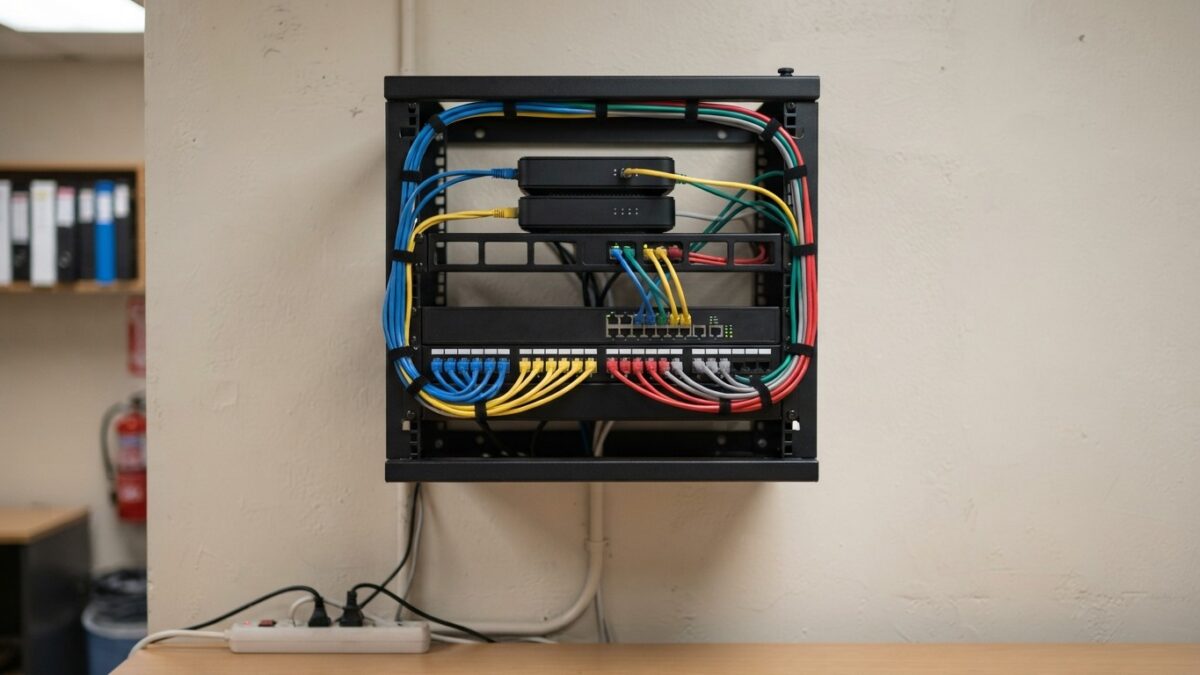

When office Wi-Fi is bad, people blame the internet connection and call the provider. Often the provider is not at fault. The connection delivers its full speed to the router, and then a single consumer-grade wireless box in a cupboard at the far end of the office tries to serve thirty devices through two walls.
Good business Wi-Fi is a matter of design more than equipment price: where the access points go, how many there are, how they are connected, and how the network is divided. This article explains the principles. Network security and regulated-industry requirements are specialist subjects, and we mention them only to say they exist and to point you to a qualified professional.
An office complains that Wi-Fi is slow, so the manager upgrades the internet plan. Nothing changes: the single router in a cupboard still serves thirty devices through two walls. The bottleneck was never the connection.
Coverage is not the same as capacity
Most people judge Wi-Fi by the signal bars: full bars means good. But there are two separate questions. Coverage is whether the signal reaches a place at all. Capacity is whether the network can serve everyone there at once.
A single access point can have excellent coverage across a floor and still perform terribly, because it is a shared medium. Only one device talks on a channel at a time, and every laptop, phone, printer and conference unit competes for that time, called airtime. A busy office needs multiple access points, not to extend the range but to split the load.
That is why the right number of access points is driven by how many devices and how heavy their use, as well as by the size of the space. A small open-plan office with ten people may be served well by two. An office full of video calls and large file transfers may need more, in the same space.
Why consumer routers fall short
- One radio location. A single box at one end covers one end well. Adding a second consumer router creates a mess of competing networks.
- Limited management. No central view of who is connected, no consistent configuration across units, and no easy way to see problems.
- Weak at scale. Consumer devices struggle with many simultaneous clients.
- No roaming design. Moving around the office, devices hold onto a distant access point instead of moving to a nearer one.
- Limited network separation. Fewer tools for dividing staff, guests and equipment.
Business-class access points are designed to work together under a controller or cloud management service, with a single network name and coordinated settings. Devices roam between them, and you can see and manage the whole network from one place.
Placing access points
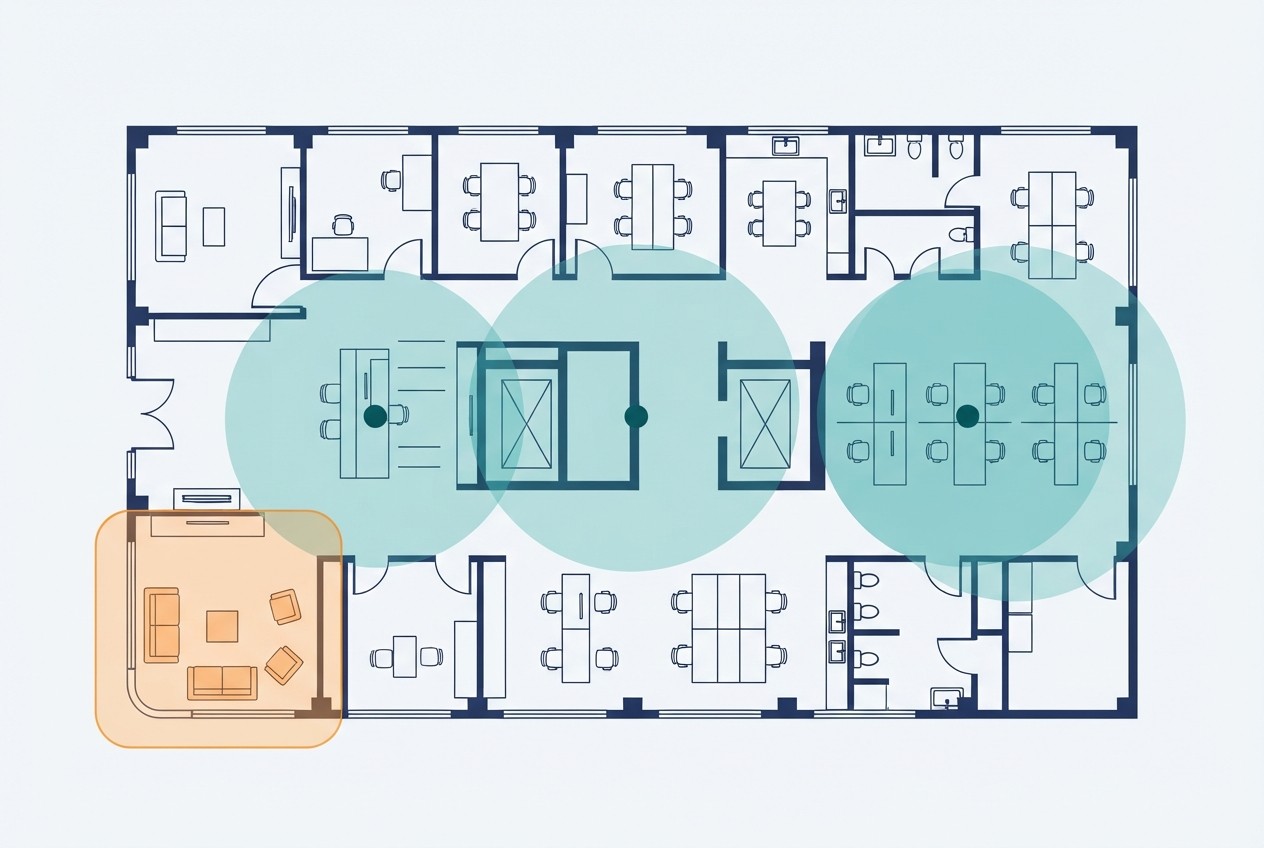
- Mount them high and open. Ceiling mounting in the middle of the area they serve gives the best coverage and fewest obstructions. Access points hidden in cupboards, behind metal or under desks perform poorly.
- Spread them out rather than clustering. Place them so that each covers its own zone, with modest overlap at the edges so devices can move between them. Too much overlap causes interference between your own units.
- Think about what is in the way. Concrete, brick, metal, glass, water and mirrors absorb or reflect signal. A kitchen with a large refrigerator, a server room with metal racks, and a stair core all create shadows.
- Place them where people actually work. Coverage matters at desks, meeting rooms and reception, not in corridors and stairwells.
- Consider the density. Meeting rooms with a dozen people on video calls are the highest-demand spots. Give them proper coverage, sometimes their own access point.
- Keep them away from interference. Microwave ovens, cordless phones and some other equipment can disturb the signal, particularly on the older band.
The most reliable way to plan is a site survey, in which a person or a tool measures signal and interference in the actual building. Many installers do this, and some tools let you do a basic survey yourself. For a small space, a trial installation with a walk test, where you carry a device around checking speed, is often enough.
Bands and channels
Wi-Fi uses several frequency bands, each with different characteristics.
| Band | Range | Speed potential | Congestion |
|---|---|---|---|
| 2.4 GHz | Longest; passes through walls better | Lowest | Heavy: shared with many other devices and neighbouring networks, and has few separate channels |
| 5 GHz | Shorter | Higher | Moderate; more channels available |
| 6 GHz | Shortest | Highest | Light, where devices support it; more channels |
Modern access points can serve all bands at once. A good configuration encourages capable devices onto the faster, less crowded bands and keeps the longer-range 2.4 GHz band for older devices and distant spots. The number and width of the channels you use also matters: wider channels offer more speed but leave less room, so in a crowded environment narrower channels often give better overall results. Management software on business equipment can choose channels automatically, and that is usually the right default.
Connect access points with cable
Each access point should connect back to the network by wired Ethernet whenever possible. Wireless links between access points halve their capacity and add delay. A single network cable to each access point is the best investment in the system.
Most business access points are powered through the same cable, using a standard called Power over Ethernet, so no separate power supply is needed. This requires a network switch that supports it, and the switch’s total power budget has to cover all the devices connected. Running and terminating network cable in a building is the job of a cabling contractor, and in some places requires specific cable types and permits, so involve one for anything beyond patching in a visible cable.
Separate the networks
A single wireless network that everyone and everything shares is simple and a poor design. Dividing the network into separate parts keeps the important traffic safe from the casual.
- Staff network. For business devices that need access to internal resources, protected by a strong password or stronger authentication.
- Guest network. A separate network for visitors, isolated from the internal network, so a guest’s phone cannot see your printers, files or computers. It can be limited in speed and set to prevent guest devices from communicating with each other.
- Device network. A separate network for printers, cameras, sensors, smart displays and other equipment that does not need to talk to the staff network, and that tends to receive security updates slowly or not at all.
- Payment equipment. If you accept cards, your payment provider and your card agreements may set requirements for how that equipment is connected. Ask them, and ask a qualified professional. We cannot tell you what applies to you.
Separation is done with virtual networks on the router, switch and access points. It takes a little planning, and most business equipment supports it. Many small offices never do it and then discover that a visitor’s laptop shares a network with the accounting computer.
Good habits for security and upkeep
- Use modern encryption with strong, unique passwords, and change the defaults on all equipment.
- Do not share the staff password with guests. Give them the guest network.
- Keep firmware up to date. Updates fix security problems and performance issues.
- Change the password when staff who knew it leave, or move to individual credentials if your equipment supports them.
- Review connected devices occasionally. Unknown devices on the network are worth investigating.
- Document everything. Where the access points are, what the networks are called, and who has the administrator login.
Network security is a specialist field, and the right measures depend on what your business holds and what rules apply to it. If you handle sensitive customer data, work in a regulated field or are unsure what applies to you, ask a qualified professional. This article describes good basic practice, not compliance advice.
Common complaints and their usual causes
| Complaint | Likely cause |
|---|---|
| Slow in one room, fine elsewhere | Weak coverage there: obstruction, or too far from an access point |
| Slow everywhere at busy times | Capacity: too few access points, or congestion on the same channel |
| Video calls drop while walking around | Poor roaming or insufficient overlap between access points |
| Fine all day, bad at one time | Competing demand, such as a backup, an update or a nearby network |
| Everything slow, wired too | The internet connection, not the Wi-Fi |
| Old device will not connect | Band or encryption setting incompatible with the device |
A useful first test is to connect a laptop by cable and run a speed check, then do the same over Wi-Fi in the same place. If the wired result is good and the wireless one is poor, the problem is in the wireless design. If both are poor, look at the connection itself, as we describe in our guide to business internet connections.
A planning summary
- Count the devices and note the heavy users, such as video rooms.
- Walk the space and note obstructions and likely interference.
- Plan ceiling-mounted business access points spread across the space, each with a cable.
- Choose management that gives you a single network and one view of the whole system.
- Separate staff, guest and device networks.
- Test with real devices in the real spaces before and after installation.
- Keep the documentation, and update the firmware.
Good Wi-Fi is largely invisible. Nobody thinks about it when it works, and everyone does when it does not. Spend the effort on placement, cabling and separation, and the equipment itself will matter far less than the price list suggests.
A starting design for your space
- A small open office, under ten people: two ceiling-mounted business access points, wired, with a separate guest network.
- Many video calls in meeting rooms: give each busy room its own access point.
- Thick walls or several floors: more access points with modest overlap, placed from a survey.
- Visitors use your Wi-Fi: always a separate guest network, isolated from staff devices.